
 Support
RentPackage Move-out Settlement and Move-out Checklist: When a Tenant Moves Out, Rent, Utilities, Deposit and Owner Management Fees Calculated for Landlords and Property Managers, Signed Online on Handover Day
Quick links
- Why use move-out settlement
- Move-out in just three steps
- Step 1: Set the move-out day
- Step 2: Generate draft settlement period
- Managed properties: owner settlement period
- Step 3: Confirm Settlement
- Found a mistake after confirming: Revert to Settlement Draft
- Collect the payment, and the settlement is complete
- Move-out Checklist: sign online on moving day
- Frequently asked questions
Why use move-out settlement
A tenant says “I’m moving out on the 15th of next month,” and right away you have to work it all out: up to which day is rent charged? Have the meters been read? Which billing periods are still unpaid? How much of the deposit goes back? For managed properties, you also have to go over the management fee with the owner again. Punch it into a calculator item by item, and one mistake can start an argument with the tenant.
- The system calculates the amounts
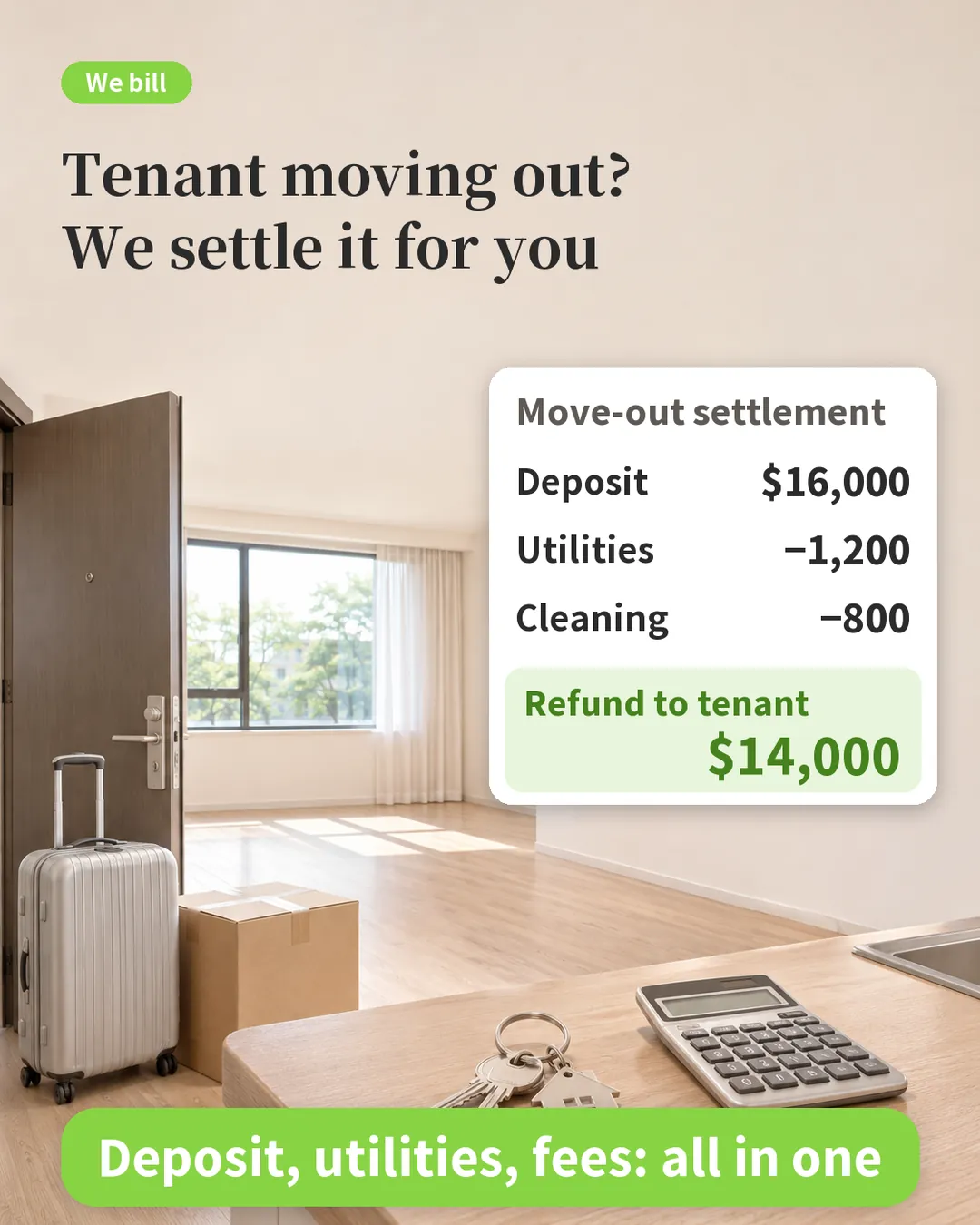
Set the move-out date and the system puts unpaid billing periods, the early termination fee, the pro-rated refund of prepaid rent and the deposit offset into one settlement period, with the calculation written on it, so you have clear answers when the tenant asks. - The same money is never collected twice
Once the draft is generated, the other billing periods of this lease are locked; after you confirm the settlement, rent after the move-out date no longer sends payment notices to a tenant who has already left. - Owner accounts for managed properties are settled too
The owner’s unpaid management fee is pro-rated up to the move-out date, and for management fees collected in advance, the system works out how much was overcharged and how much to refund to the owner, in a separate owner settlement period. - The room is back on the market right away
After you confirm the settlement, the room’s listing is switched on automatically; the property card shows “Move-Out Settled,” so your team can see at a glance how far the move-out has got. - A handover with photos and signatures
On moving day, do the handover online: the item list, photos and both parties’ signatures are made into a PDF and emailed to both, so you have evidence if a dispute comes up later.
Move-out in just three steps
Move-out settlement has three steps, and it is complete once the payment is received:
- Set the move-out day
- Generate draft settlement period: the system calculates everything to collect and everything to refund
- Confirm Settlement: the settlement period becomes unpaid, and you can start collecting or refunding
Step 1: Set the move-out day
When it opens, the lease term, rent and deposit of this lease are listed at the top, so you don’t need to dig out the contract.
- Leaving when the lease ends: choose [Move out on the lease expiration date].
- Leaving early: choose [Specify the date of move out] and enter the day they leave.
No need to keep track of move-outs yourself: with the “Tenant Move-out Reminder” in Custom Notification Rule, the system emails the employees responsible for this property before the move-out date, reminding you to arrange the handover and read the utility meters.
Click [Set the move-out day], and step 1 is done.
Step 2: Generate draft settlement period
Click [Generate draft settlement period] and the system creates a tenant settlement period. Everything the tenant has to pay and everything you have to refund is in this one place:
- Unpaid billing periods before the move-out date, such as rent and utilities, are merged in.
- If the tenant moves out early, the early termination fee from the contract is added automatically.
- If rent has been prepaid beyond the move-out date, the refund is calculated by the number of days, and the calculation is shown.
- For utilities that haven’t been read yet, click [Modify billing period] and enter the readings on the move-out day; cleaning and repair fees are added here too.
- Deposit: a deposit held by you is offset directly in the tenant settlement period; if the deposit is held by the owner or kept in a third-party account, the system lists it in a separate deposit settlement period, so the accounts don’t get mixed up.
The total at the bottom shows how much the tenant still has to pay, or how much you have to refund to the tenant.
Managed properties: owner settlement period
For a managed property, at move-out you settle not only with the tenant but also with the owner. The system creates an additional owner settlement period:
- Management fees the owner hasn’t paid you yet are pro-rated up to the move-out date and collected from the owner.
- If management fees were collected in advance beyond the move-out date, the system works out the overcharge and lists it as an amount to refund to the owner, with the explanation already written.
Step 3: Confirm Settlement
When everything looks right, click [Confirm Settlement], and the system asks you to confirm once more. After that, the system automatically does three things:
- The settlement period becomes unpaid, so you can start collecting or refunding, and it appears in Tenant Billing Periods.
- Rent billing periods after the move-out date are set to abandoned, so no more payment notices are sent to a tenant who has already left.
- The listing for this room is switched on automatically, so you can start looking for the next tenant right away.
The property card shows “Move-Out Settled.” You can confirm the settlement even before the move-out date, for example when the tenant has been suddenly posted elsewhere by their employer and has already left.
Found a mistake after confirming: Revert to Settlement Draft
If you find a missing item after confirming, as long as no payment has been received on the settlement period, go to Tenant Billing Periods, click [More Actions] on the settlement period and choose [Revert to Settlement Draft]. The settlement period goes back to draft, and all your edits to the draft are kept; add what was missing and click [Confirm Settlement] again.
Collect the payment, and the settlement is complete
If the tenant owes money, [Mark as Received] the settlement period once you receive it; if you owe the tenant a refund, [Mark as Paid] after you refund. You can select the owner settlement period at the same time and finish in one go.
Once everything is paid, the settlement is complete: the room goes back to “Vacant,” and you can add the next contract right away; billing periods after the move-out date that are no longer needed are cleared automatically. After the settlement is complete, you can no longer revert to the settlement draft.
Move-out Checklist: sign online on moving day
On the day the tenant leaves, you also do the handover together: have the keys been returned, are the fridge and air conditioner still there, are there holes in the walls? Tick boxes on paper, and when a dispute comes up later, you often can’t find who signed what.
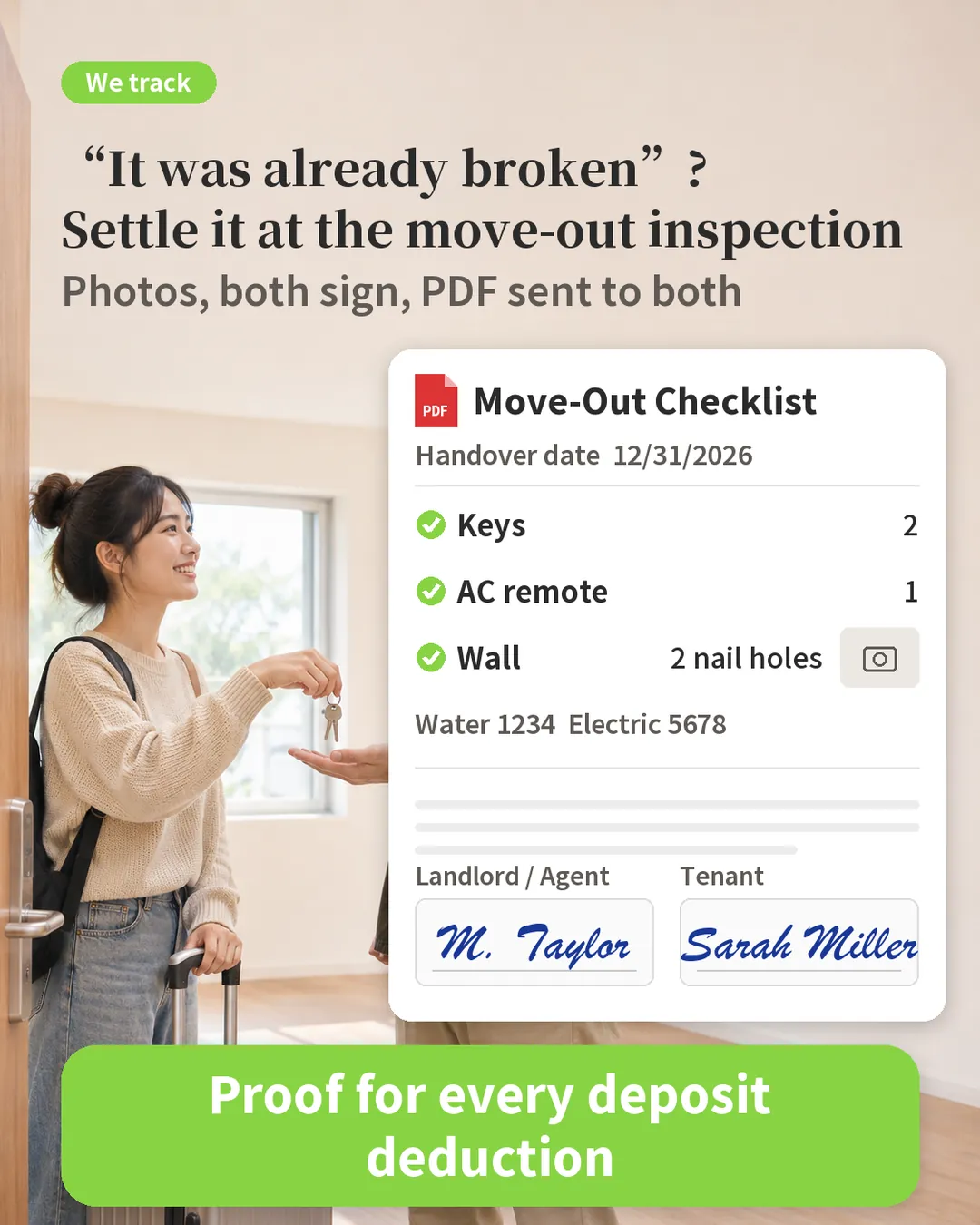
Any time after the tenant has moved in, you can do the handover: in Contract Management, click [More Actions] and choose [Move-out Checklist]; you can also find it under [More Actions] on the room card.
- Enter the handover date.
- The rental items entered when the contract was created are brought in as a full list, so you don’t have to type them again; use the plus and minus buttons to set quantities. For items with problems, choose Needs repair, Damaged or Missing and describe the condition; add anything not on the list under “Others.”
- Take photos on site and upload them; write information such as meter readings in the notes.
- Click [Send for Signing] and choose who signs first. Once sent, the checklist content is fixed, so both parties sign the same version. Sending for signing uses one e-contract.
- The tenant opens the link in the email, takes a photo of themselves and then signs. No printing, no app to install.
- On the company side, the employee who clicked [Send for Signing] signs personally.
- Once both parties have signed, the system generates a PDF and emails it to both: the checklist content, photos and signatures are all in it.
If something needs changing after it has been sent, the employee who sent it clicks [Edit Content]; both signatures are cleared, and the checklist is sent again once corrected. If the employee who sent it has left the company or cannot sign, delete this checklist and have another employee create and send a new one.
Frequently asked questions
What if the tenant changes their mind and doesn’t move out?
If the settlement hasn’t been confirmed yet, use [Cancel Move Out], and the locked billing periods are restored. If it has already been confirmed, first use [Revert to Settlement Draft], then cancel the move-out.
If I change the move-out date, will the amounts I edited on the draft be lost?
Yes. When the move-out date changes, the system has to regenerate the draft, so edited amounts, meter readings and added items are all cleared. The system asks you to confirm before doing this.
Do I have to wait until the settlement is complete to do the handover?
No. The handover and the settlement are separate. You can do the handover at any time from when the tenant moves in until the settlement is complete.
Summary
If you keep working the way you do now, when the next tenant moves out you will still be adding things up on a calculator item by item, then going over the accounts with the tenant and the owner separately, and once the handover sheet is signed, nobody knows where it ended up. In RentPackage, as soon as you set the move-out date, rent, unpaid charges, prepayments, the deposit and the owner’s management fee are all calculated automatically, and the room goes straight back on the market; on handover day, both sides sign online and the PDF is emailed to both.
Start with one tenant: the next time someone says they are moving out, open their property card and click [Move Out] to try it.
Try RentPackage for freeRelated articles
- RentPackage Add Lease: Set the lease term, deposit and utilities in one go, and billing periods are generated automatically.:Enter the rental items when you create a contract, and the system brings the whole list into the move-out checklist.
- RentPackage Owner Distribution: Property Managers Pay Owners After Deducting Fees, With Security Deposits Kept Separate:Once a managed property is settled, how the owner’s money is transferred to the owner’s private account.
- RentPackage Custom Notifications: Automatic Lease Renewal, Rent Increase and Insurance Expiry Reminders for Landlords and Property Managers:Set up the “Tenant Move-out Reminder” to automatically email the responsible employees before the move-out date.