
 Support
RentPackage Bank Statement Import: Landlords and Property Managers Reconcile a Month of Rent in One Upload
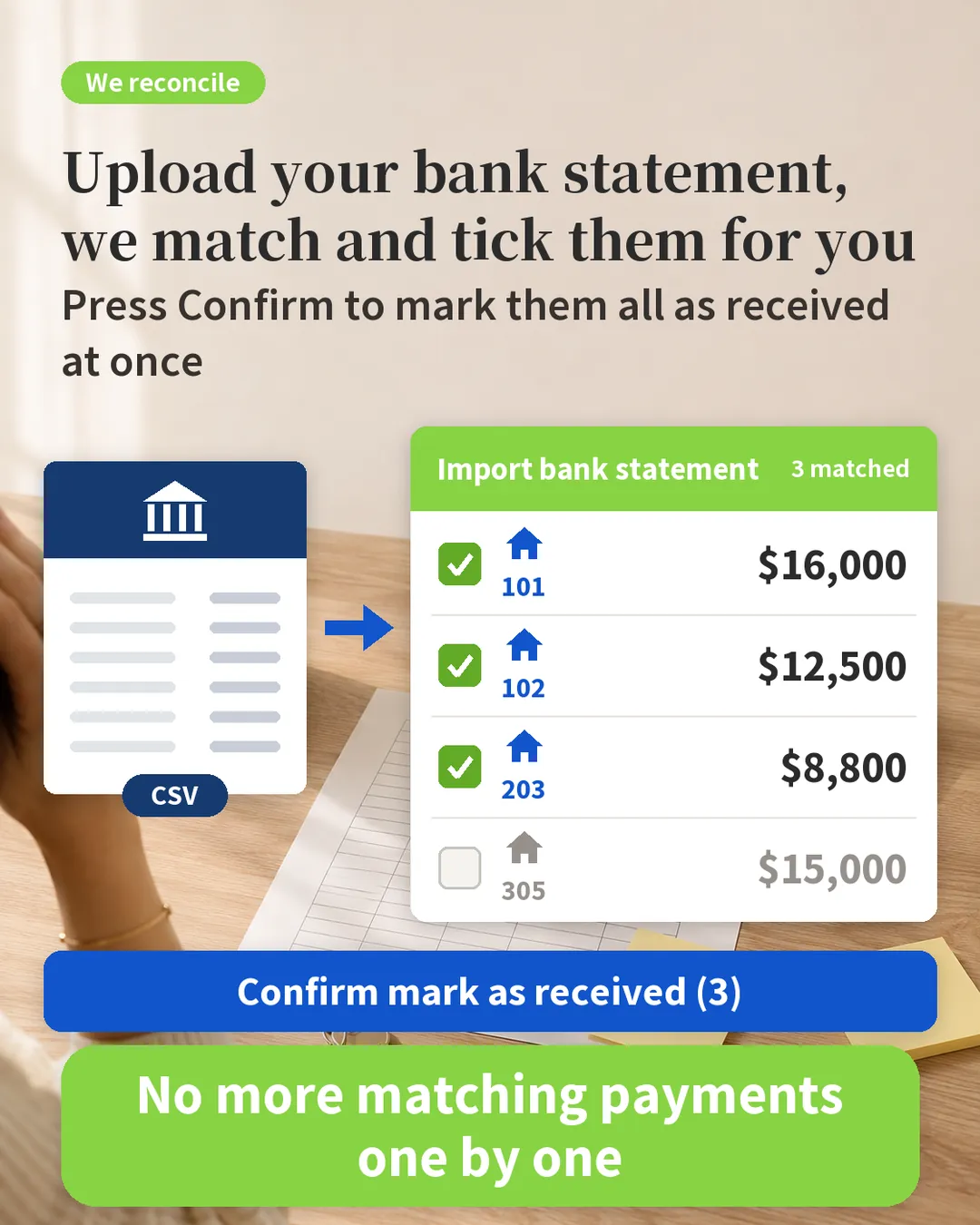
Download a statement from your online banking and upload it. RentPackage works out which billing period each deposit belongs to: when it can tell which tenant paid, it ticks the bill for you. You take a quick look, click once, and everything is marked as received.
Contents
Why import bank statements
At the start of every month, dozens of deposits land in your bank account and you have to match them one by one: who paid this 18,000? The reference only says ‘302’ – which building’s 302? Several tenants pay the same rent, so who was it? Then you go back to the system and click [Mark as Received] one bill at a time, and it is easy to record a payment against the wrong tenant.
- The system does the matching
For each deposit it finds unpaid bills with the same amount, then looks at the tenant name and room number in the reference, and at the payer account, to work out which tenant paid. - It gets more accurate as you use it
Once you confirm a match, the system remembers which tenant that payer account belongs to, and next time a deposit from the same account is ticked automatically. - Mark everything as received at once
The payment date is taken from the statement, management fees are handled along with the rent, and bill status, to-dos and reports all update together. - No bank connection needed
Just download the statement from your online banking and upload it. It works with banks in any country. The file is read only in your browser and is not uploaded to the server.
Which statements are supported
- CSV and Excel files downloaded from online banking in any country (the transaction history page usually has an ‘Export’ or ‘Download’ button)
- CAMT.053 and MT940 from European banks
- OFX and QFX from online banking in the US, UK and Australia
Every bank lays out its CSV and Excel files differently, so the first time you confirm which column holds the date, amount and reference (the system makes a first guess). Save it as a template and it is applied automatically to the same bank from then on. CAMT.053, MT940 and OFX are standard formats, so no column mapping is needed.
How to do it
- Go to the transaction history in your online banking and download a statement (CSV, Excel, or CAMT.053, MT940, OFX).
- In RentPackage, go to [Accounting] > [Property accounting] and click [Import bank statement] at the top right. The [Property accounting] panel on the right side of the property page has the same button.
- Choose the statement file. For CSV and Excel you will see ‘Column mapping’: confirm which columns hold the Transaction date, Deposit amount, Note and Payer account, and tick [Save as a template].
- Click [Start matching].
- Check the results: ticked rows are bills the system recognised, with ‘Matches: amount ✓ name ✓ …’ written underneath. For rows that are not ticked, pick the bill from the drop-down yourself. Untick anything that is wrong.
- Click [Confirm mark as received], and all ticked bills are marked as received in one go.
How the system decides which bill a deposit belongs to
- Deposits already recorded are not counted twice
If the same tenant already has a received payment with the same amount within 3 days, the deposit shows ‘already been marked as received’ and cannot be ticked. Uploading the same statement period again will not record anything twice either. - The amount must match
The deposit amount must equal the amount due on the bill. - It can tell which tenant paid
It recognises the tenant by a remembered payer account, the last 4 digits of the payer account (fill in the payment details in the tenant’s information), or the name in the reference. The system matches the deposit to that tenant’s earliest unpaid bill, and ticks it for you if the Receivable Due Date is within range:- Monthly: up to 25 days late or 30 days early
- Every two weeks: up to 7 days late or 5 days early
- Weekly: within 3 days either way
- Several deposits from the same tenant
For example with weekly rent, each deposit is matched to one bill in date order. - Room numbers are only a hint
If the reference says ‘302’, the system looks for tenants in room 302, but different properties often have the same room numbers. It only ticks the bill when exactly one tenant matches the amount and date; if several do, you choose. - When it cannot tell who paid
It only ticks the bill when the Receivable Due Date is within 10 days and there is just one bill with the same amount. If several tenants have bills for the same amount, pick one from the drop-down yourself. - Every row shows its reasons
For example ‘Matches: amount ✓ name ✓ room number ✓ Receivable Due Date 2 days ago ✓’, so you can see at a glance why the system made the match.
Only unpaid bills in the properties you watch are matched.
Frequently asked questions
What if a tenant pays too little, too much, or two periods at once?
This feature only handles bills with exactly the same amount. When the amount differs, the system lists that tenant’s bills and flags it for you. Go to the bill and click [Mark as Received] to record a Partial Payment.
Can I use a PDF statement?
Not at the moment. Most online banking lets you export the transaction history as CSV or Excel, so please use one of those.
Are receipts sent to tenants?
No. For bills where the tenant has reported a payment themselves, the usual payment confirmation email is sent as before.
Is the statement uploaded to the server?
No. The file is read in your browser, and only the date, amount, reference and payer account needed for matching are sent. The payer account is stored only as a code that cannot be turned back into the account number.
Is there a file size limit?
Up to 20 MB, and up to 3,000 deposits can be matched at a time.
What if I chose the wrong columns the first time?
Choose them again and save the template under the same name to update it.
Which plans include it?
It is available on paid plans, and you can also try it during the free trial.
Summary: no more matching payments one by one at the start of each month
If you keep doing it the current way, next month you will again open your online banking, work out who paid each deposit, and mark each bill as received one at a time. With bank statement import you just download, upload, take a look and click once. You save the time spent matching, and payments do not end up recorded against the wrong tenant.
First step: next time you reconcile, try it with one month’s statement and see how many deposits the system ticks for you.
Try RentPackage for freeRelated articles
- RentPackage Tenant Billing Periods: Payment Reconciliation, Partial Payments, Meter Reading, and Deposits. All routine rent collection in one place.:How bills are generated automatically and what each status means
- RentPackage Partial Payments: When a Tenant Pays Only Part of the Rent, Landlords and Property Managers Track the Balance Automatically:How to record a short payment and how the make-up bill is created
- RentPackage Owner Distribution: Property Managers Pay Owners After Deducting Fees, With Security Deposits Kept Separate:Once managed-property rent is collected, work out the amount to pay out to the owner